




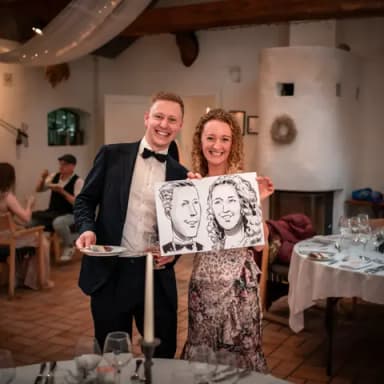
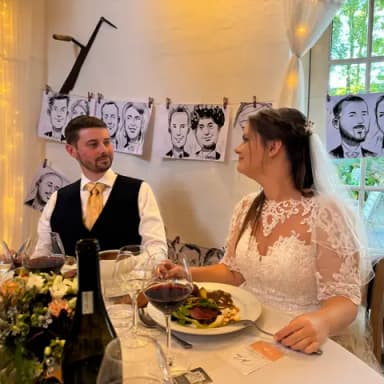
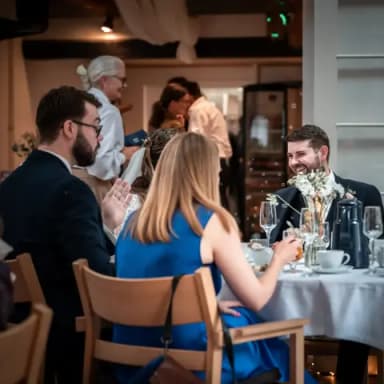
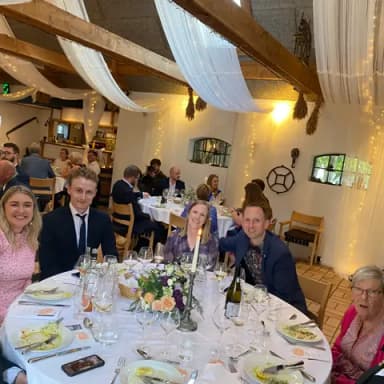
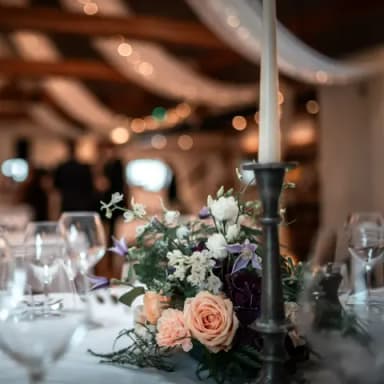
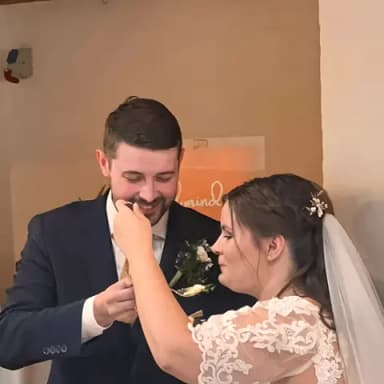
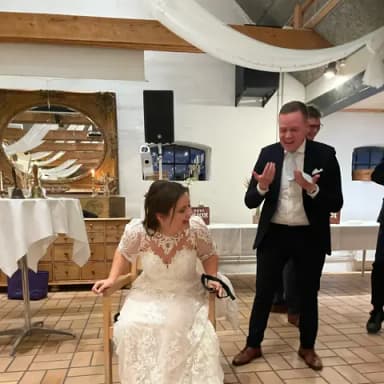
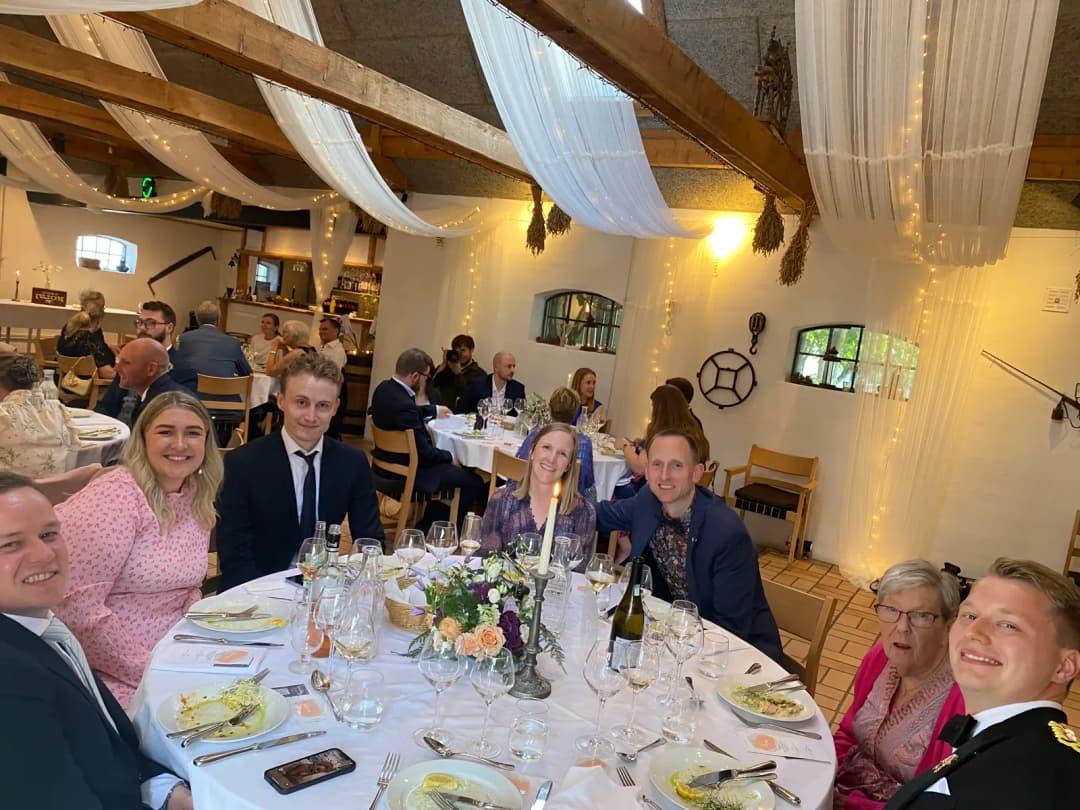
Every photo gets a good layout
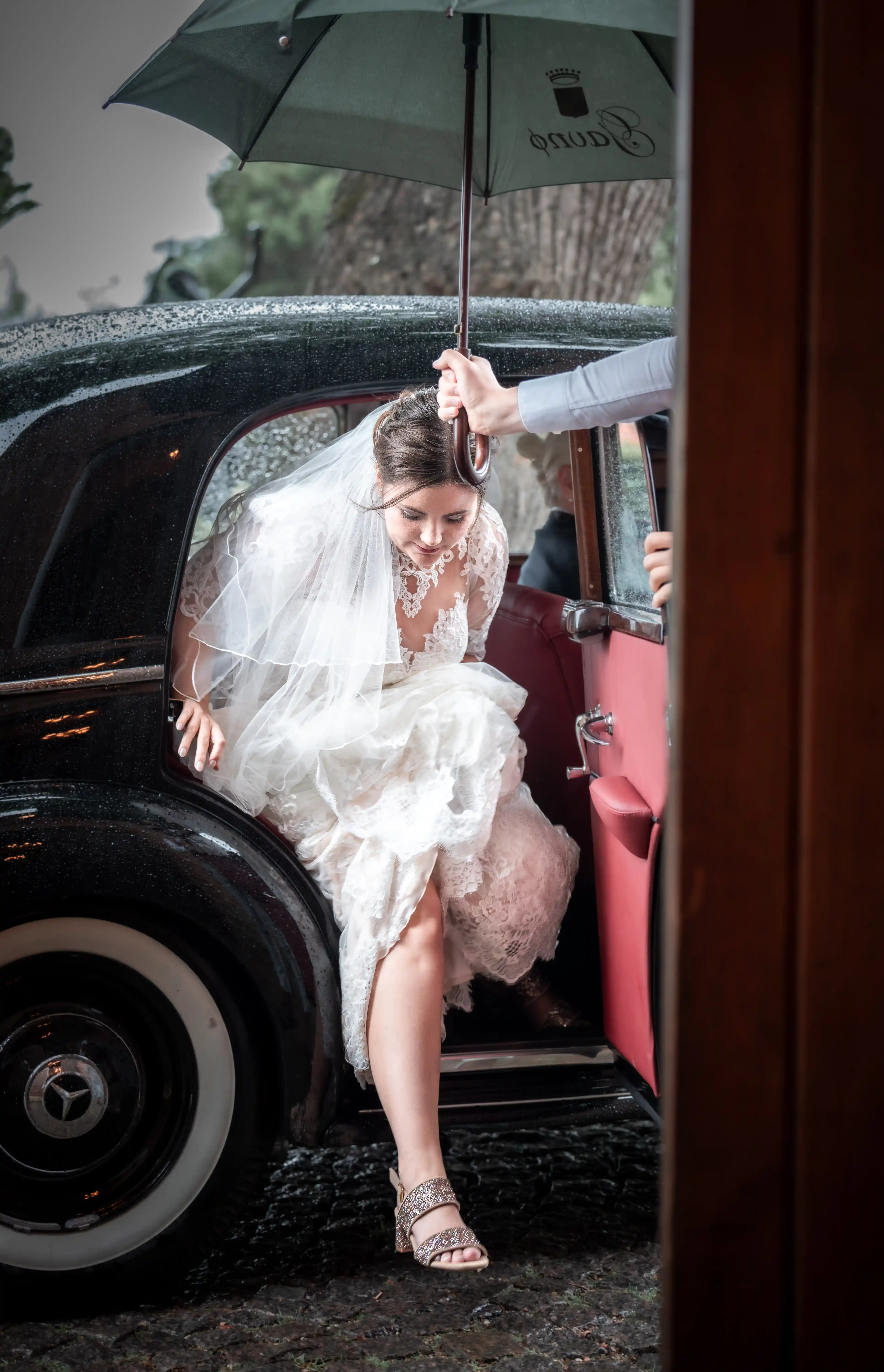
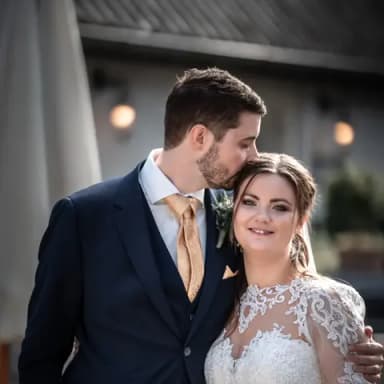
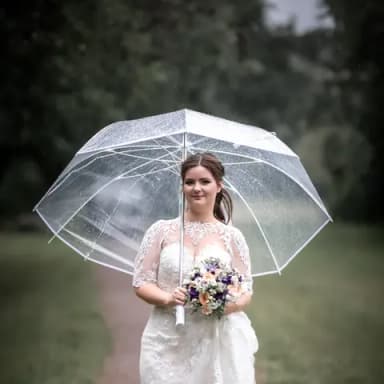
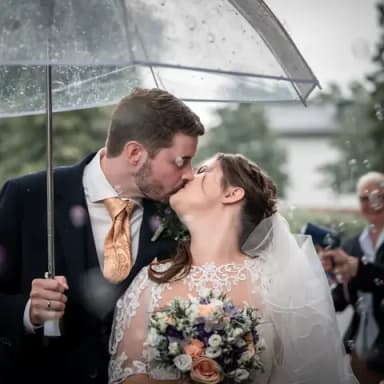
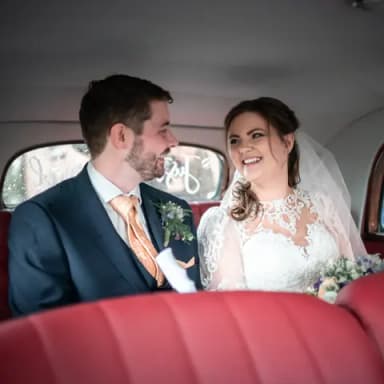
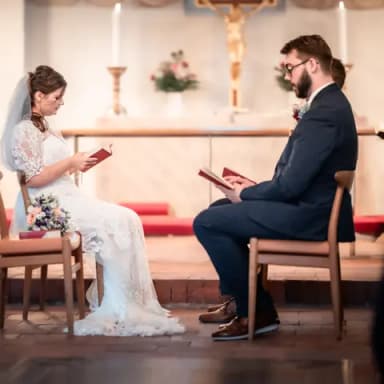
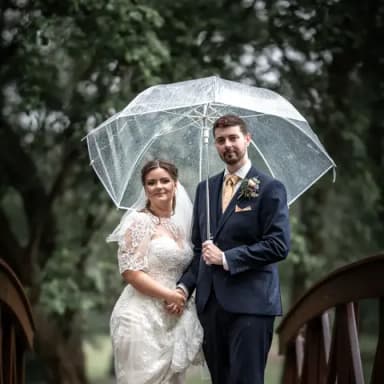
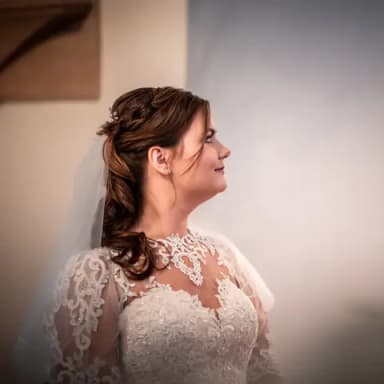
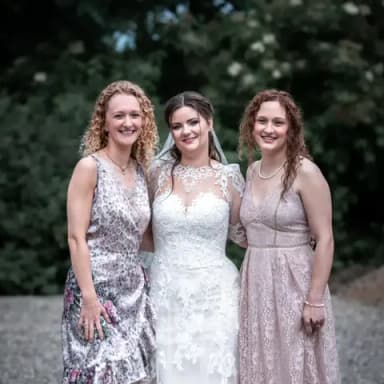
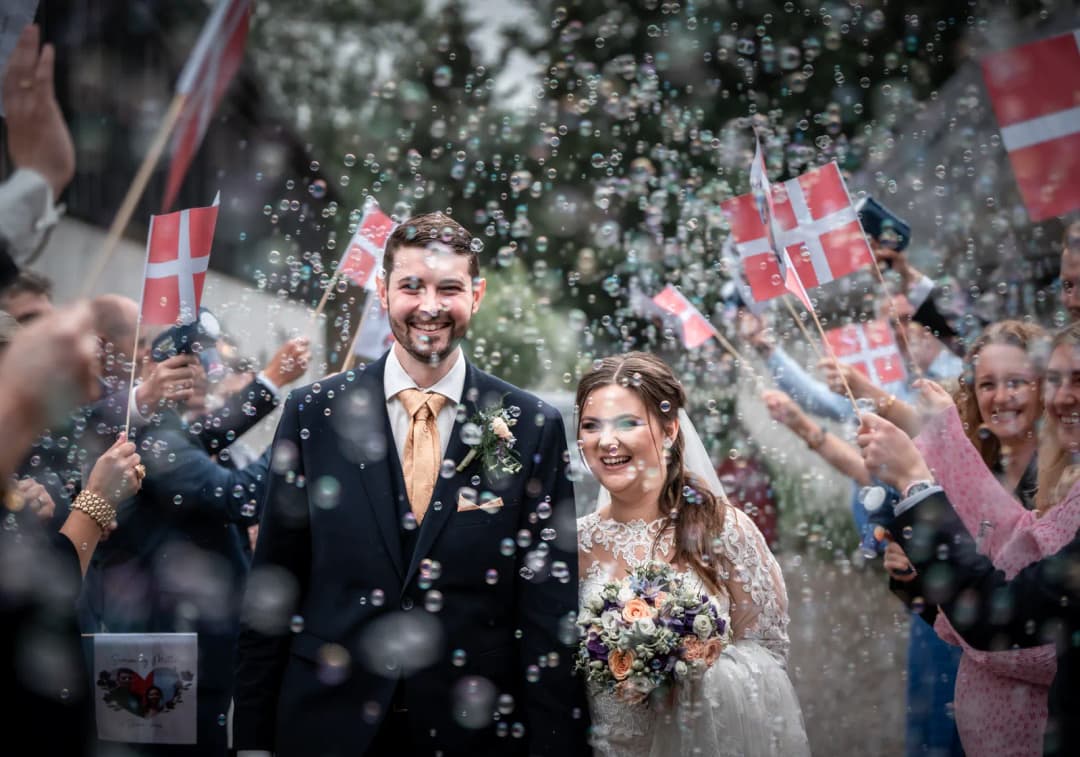
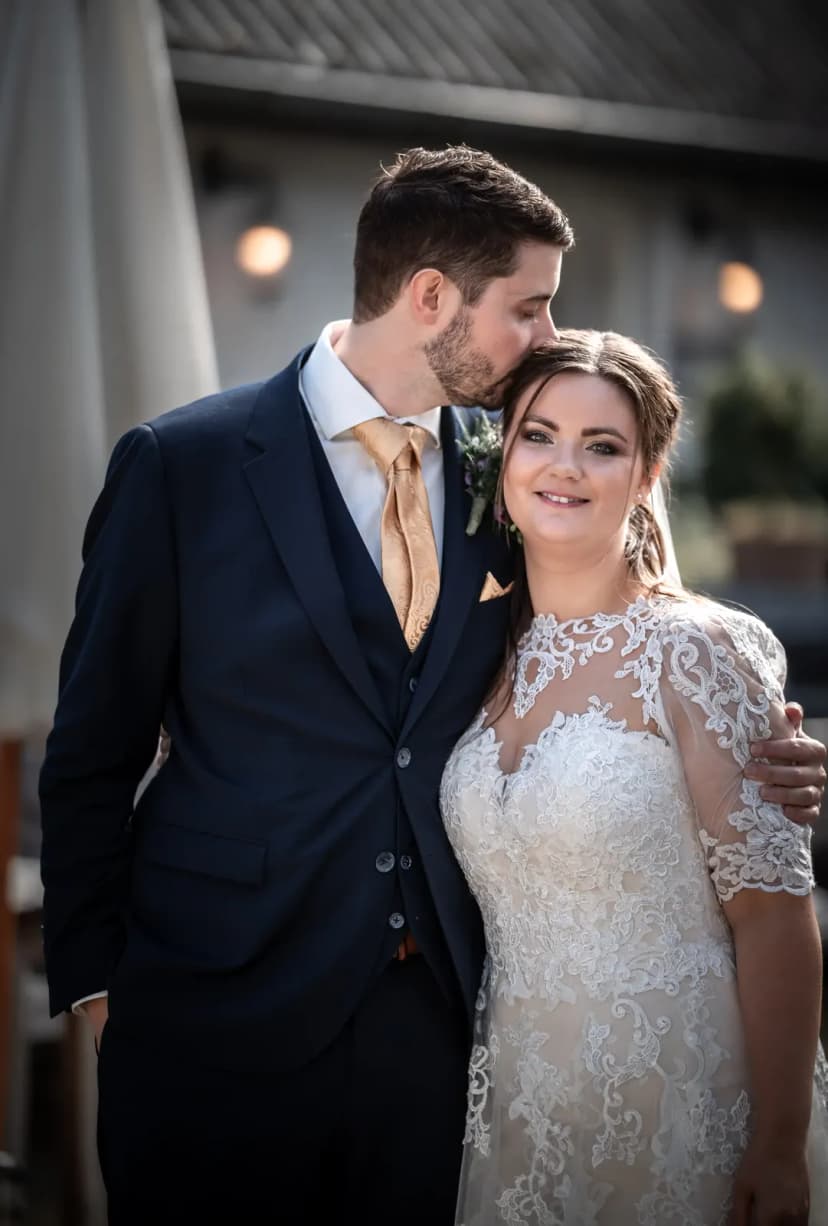
The wall shows one to four photos per screen and pairs portrait and landscape shots, with a soft fade and a slow zoom.
Live photo wall · Included with every event
Guests scan a QR code and upload from their phones. Their photos appear on your TV or projector while the party is still going. No app, no login, nothing to install.
Your guests' photos play on the big screen
Three things the wall does on its own, all night, without anyone touching the laptop.
The wall shows one to four photos per screen and pairs portrait and landscape shots, with a soft fade and a slow zoom.
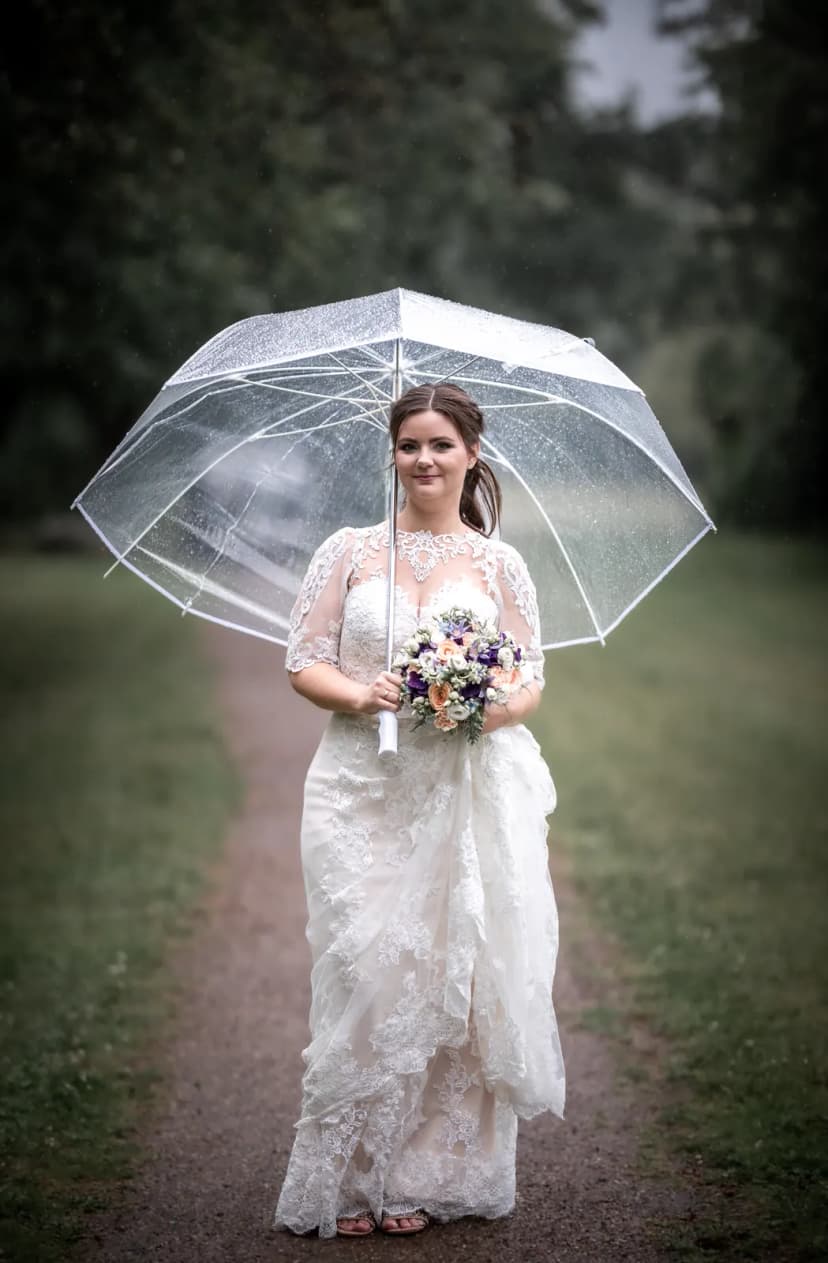
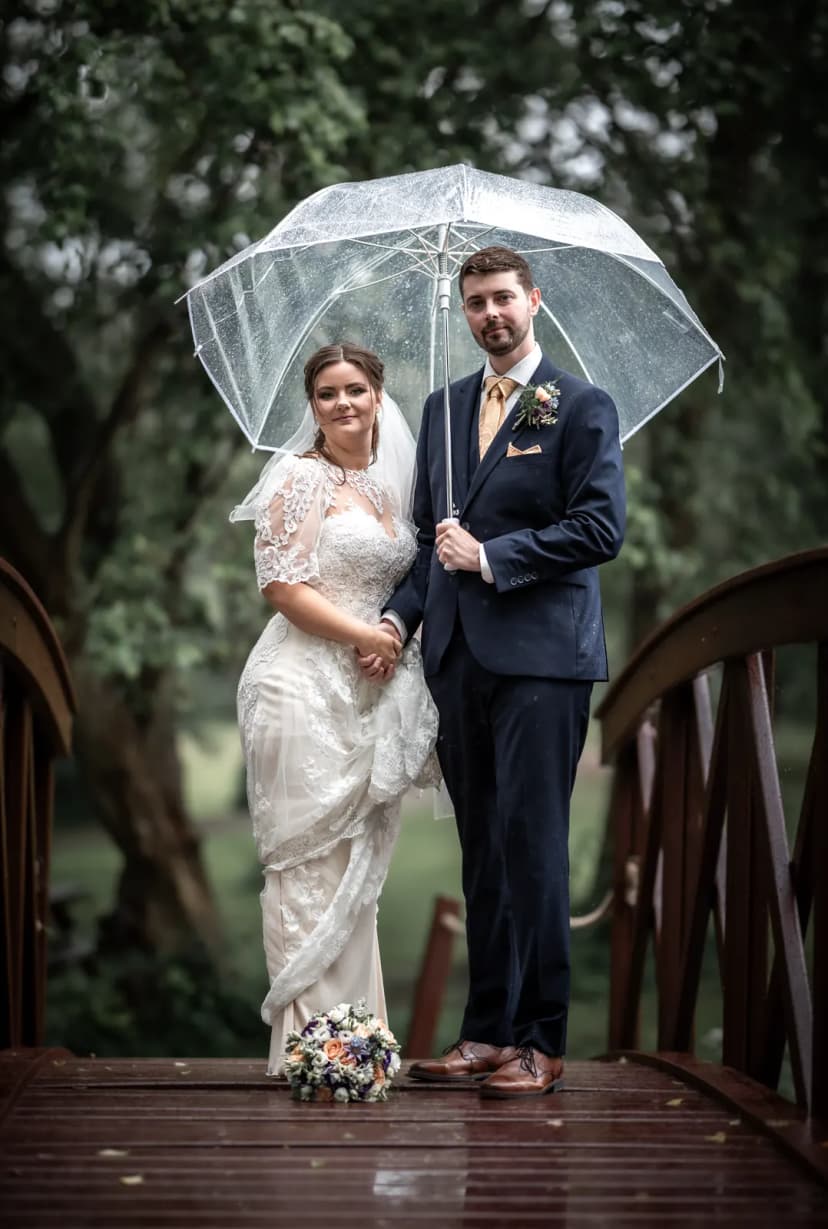
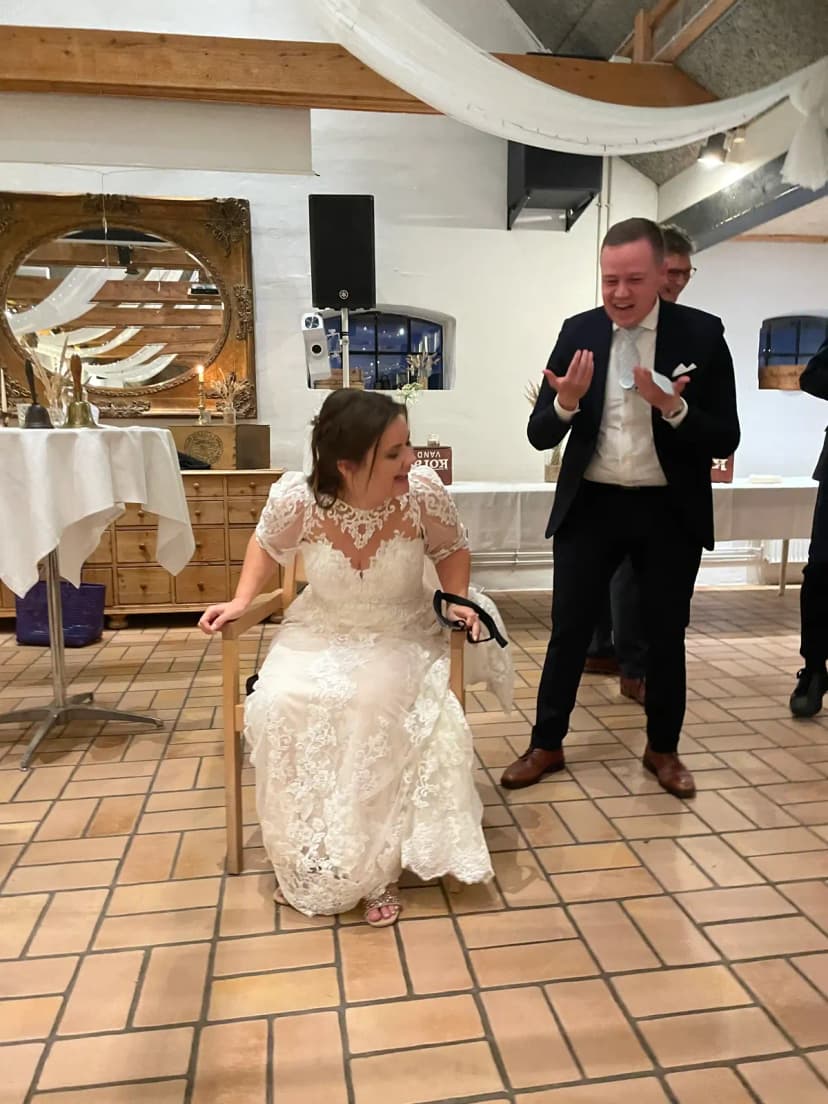
A fresh upload drifts across the screen as a polaroid, away from the QR code, then joins the slideshow.
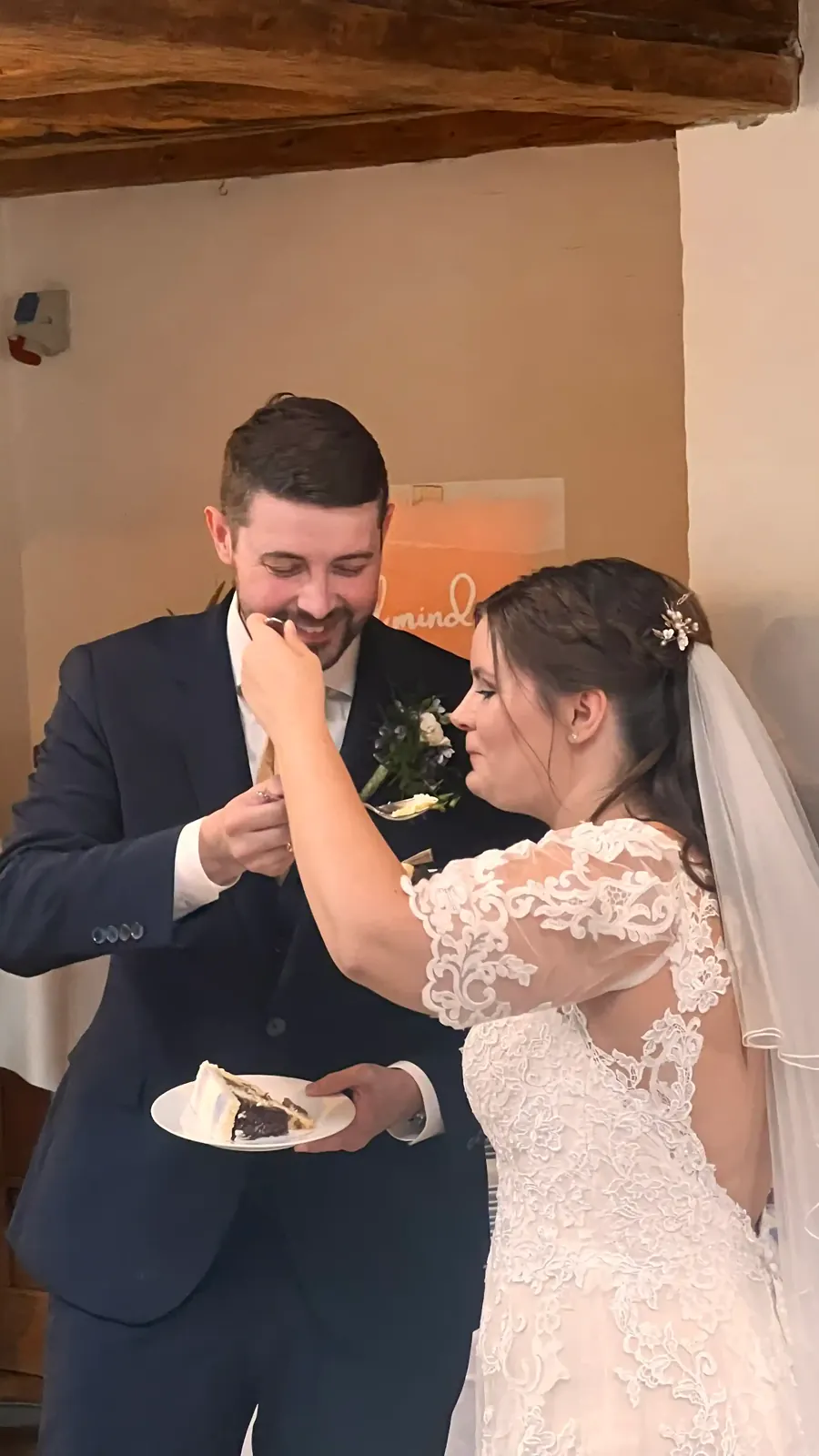

When lots of guests upload together, more photos fly in, faster and wider. Then the wall calms down again.
Before you press start, one card holds every choice. Change your mind during the party? Stop the wall, adjust, and start again.
Calm for dinner,
fast for the dance floor.
Photo wall
Your settings
Keep the QR code on screen so guests can join from across the room, or remove it.
Dynamic mixes one to four photos per screen and matches portrait and landscape shots so nothing looks squeezed.
Mixed shuffles every photo fairly. Timeline sorts photos by their date, so the day replays roughly in order.
A new screen every 12, 8 or 4 seconds: calm for dinner, fast for the dance floor.
Fresh uploads float in on the side away from the QR code. Choose the direction they travel and preview it before you start.
The wall works from the first drink to the last song. Here is how couples can get the most out of it.
Before guests arrive
Start the wall before anyone has uploaded. It shows your QR code with “Be one of the first to upload photos” and begins on its own when the first photos land.
Start with zero photos
Welcome drinks
Each new photo drifts in over the slideshow, so guests see straight away that uploading works, and that everyone will see it.
New photos: Polaroids
Dinner
Switch to Timeline and Calm. The ceremony and the portraits play back roughly in order while people eat.
Order: Timeline · Speed: Calm
Dance floor
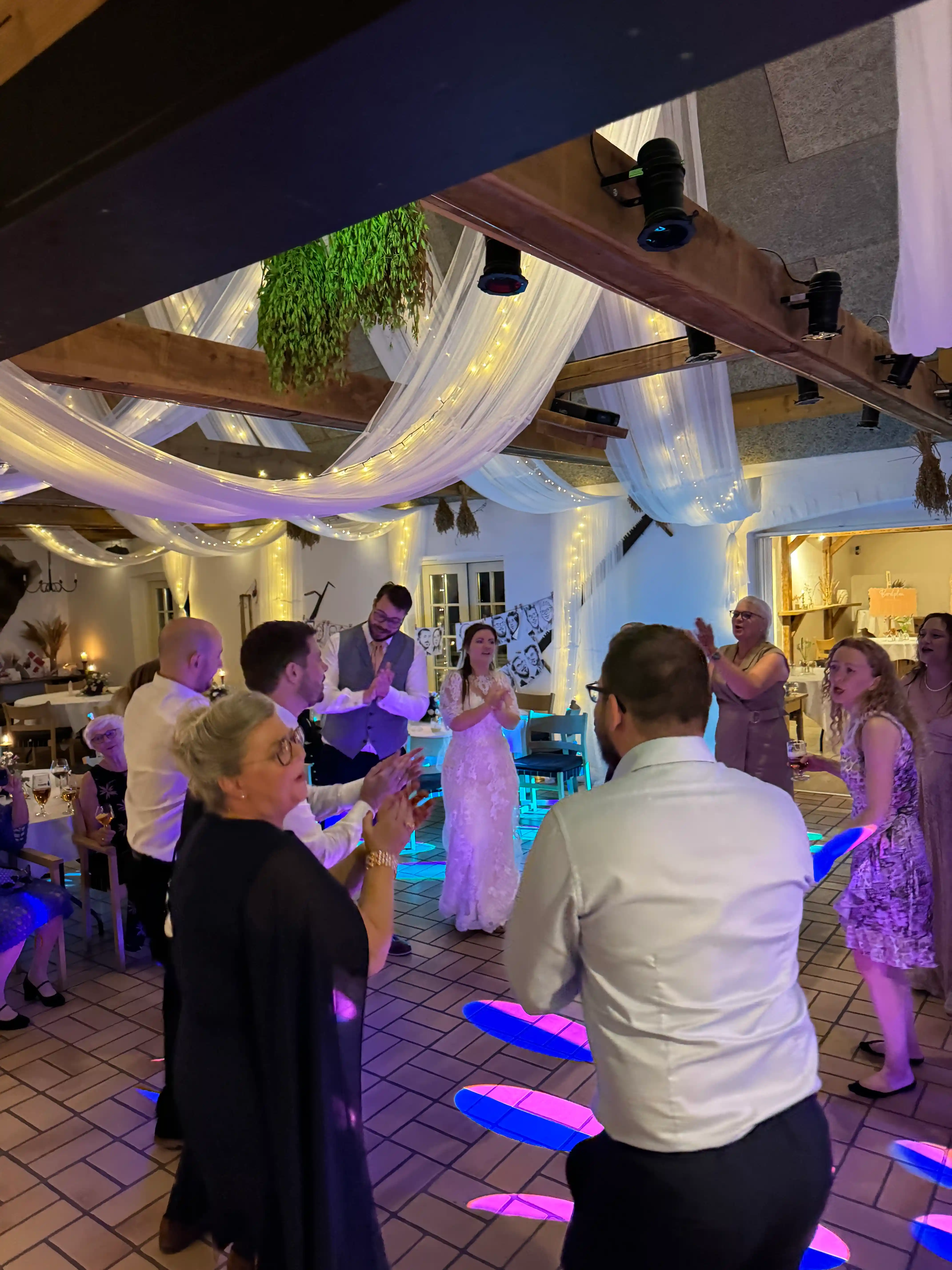
When the whole room uploads at once, the arrivals turn into a celebration. A faster speed keeps up with the energy.
Speed: Fast · New photos: Bubbles
The morning after
Every photo and video is in your gallery in its original quality, ready to download and back up.
Your gallery
No technician, no extra hardware to rent. If you can plug in a laptop, you can run the wall.
Plug a laptop into the TV or projector, usually with an HDMI cable, and open Chrome. Keep the laptop on its charger.
Log in, open your event and choose Live photo wall. It opens in a new tab, ready to go.
Pick a corner for the QR code, the rotation, order and speed, and how new photos arrive. Press Preview to see an arrival.
The wall goes full screen and the controls hide. Move the mouse to bring them back, or press the X to stop and change settings.
Put QR cards on the tables and mention the wall in a welcome speech. The first photos are the best invitation.
One event gives you the QR code, the guest gallery and the live photo wall. Your guests’ photos and videos stay in your gallery in their original quality, ready to download.
$47 USDper event
One-time payment, no subscription
Guests can upload from 14 days before the event date.
25GB shared between photos and videos; capacity varies by file size
$70 USDper event
One-time payment, no subscription
$9 USD less than upgrading later
Guests can upload from 14 days before the event date.
Unlimited* uploads, subject to fair use for private events and a small company's Christmas party of up to 100 guests
$9 USD less than upgrading later
Secure checkout with Stripe
Want to try it first? A free trial event is open for 7 days with up to 50 MB, and bulk downloads aren't included.
*Premium fair use is intended for private events and a small company's Christmas party, with up to 100 guests and an expected allocation of up to 1GB per guest. See our fair use policy.
A laptop connected to a TV, screen or projector, and an internet connection at the venue. We recommend Chrome. Open your event, choose Live photo wall, pick your settings and press Start photo wall.
No. Guests scan your QR code or open your event link and upload from their phone, with no app to install.
The wall watches for new uploads and fetches each photo as soon as it finishes uploading. With new photos turned on, it floats in over the slideshow and then joins the rotation.
The wall shows photos. Videos your guests upload are saved in your gallery, but they don't play on the wall.
Photos appear automatically; there is no approval step. If you delete a photo from your gallery, the running wall stops showing it.
Yes. The wall shows your QR code with an invitation to be one of the first to upload, and starts by itself when photos arrive.
When you start, the wall goes full screen and asks the browser to keep the screen awake, where the browser supports it. Keep the laptop plugged in and check its sleep settings before the event.
Everyone who can see the screen. The wall shows every photo uploaded to your event, even if your gallery is set to private mode, so choose where you place it.
No. The live photo wall is included with every Guest.Gallery event.
© 2026 Guest.Gallery, All rights reserved